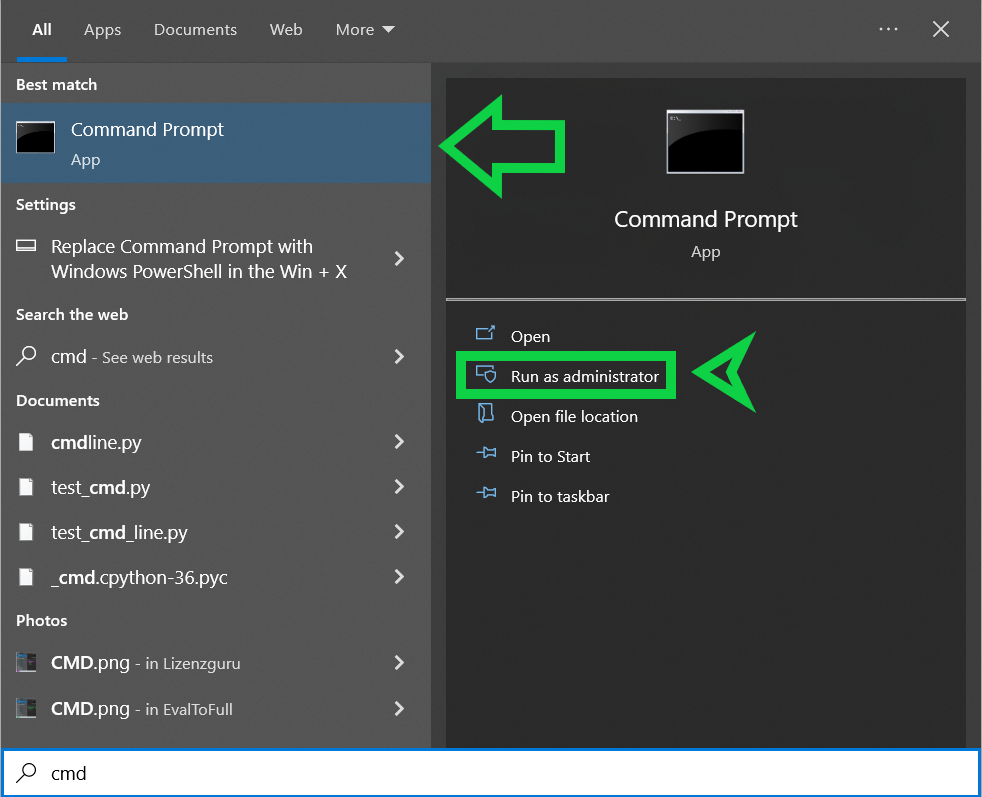
Step 1: Run CMD as Administrator
Step 2: Find the Program Directory and Navigate to It
In our case: cd "C:\ProgramData\Microsoft\Windows\Start Menu\Programs"
Step 3: Display the Keys with a Command.
With this command, you can view the number of installed keys and which Office version the keys are suitable for.
the command: cscript OSPP.VBS /dstatus
Step 4: Enter a New Key
You can enter a new key with the command mentioned below. Please note that you must enter your license key instead of the "X" character.
the command: cscript OSPP.VBS /inpkey:XXXXX-XXXXX-XXXXX-XXXXX-XXXXX
Step 5: Activate the Newly Entered Key.
With this command, you activate the newly entered key.
the command: cscript OSPP.VBS /act
How do I remove a key?
With the command mentioned below, you can remove any product key. Here, you need to replace the character "X" with the last 5 characters of the key.
the command: cscript OSPP.VBS /unpkey:XXXXX